Install
Add Darkling to your device
Join r/darklinggameDarkling runs as a Progressive Web App. Install it to your home screen or applications folder for full-screen launch, instant access, and push notifications when probes resolve, research completes, or your civilization comes under fire.
iOS · Safari
On iOS, push notifications work only when the app is installed via Safari. Chrome on iOS uses Apple's WebKit but does not expose push to web apps.
- Open
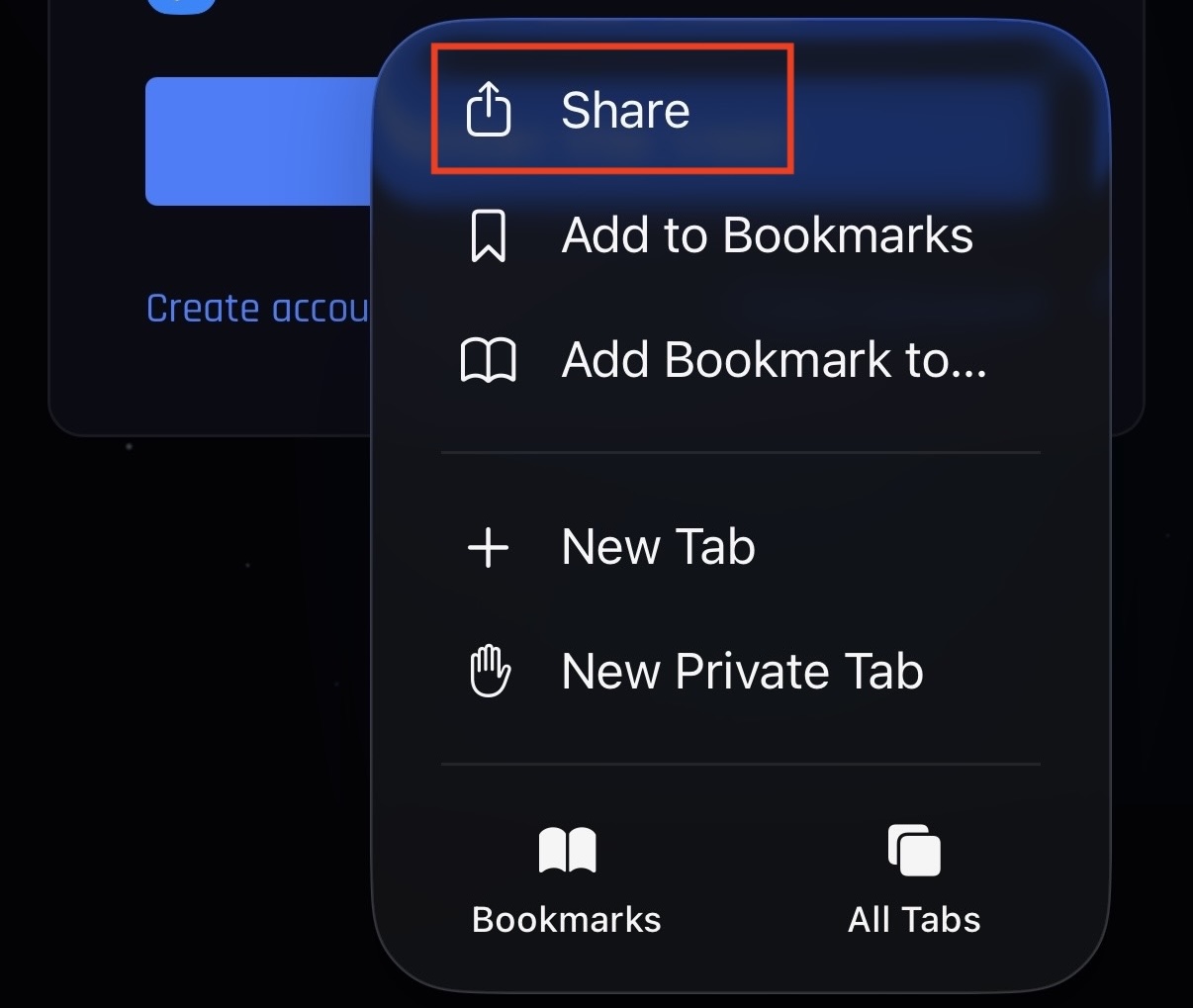
https://app.godark.ccin Safari. - Tap the Share button next to the URL bar.
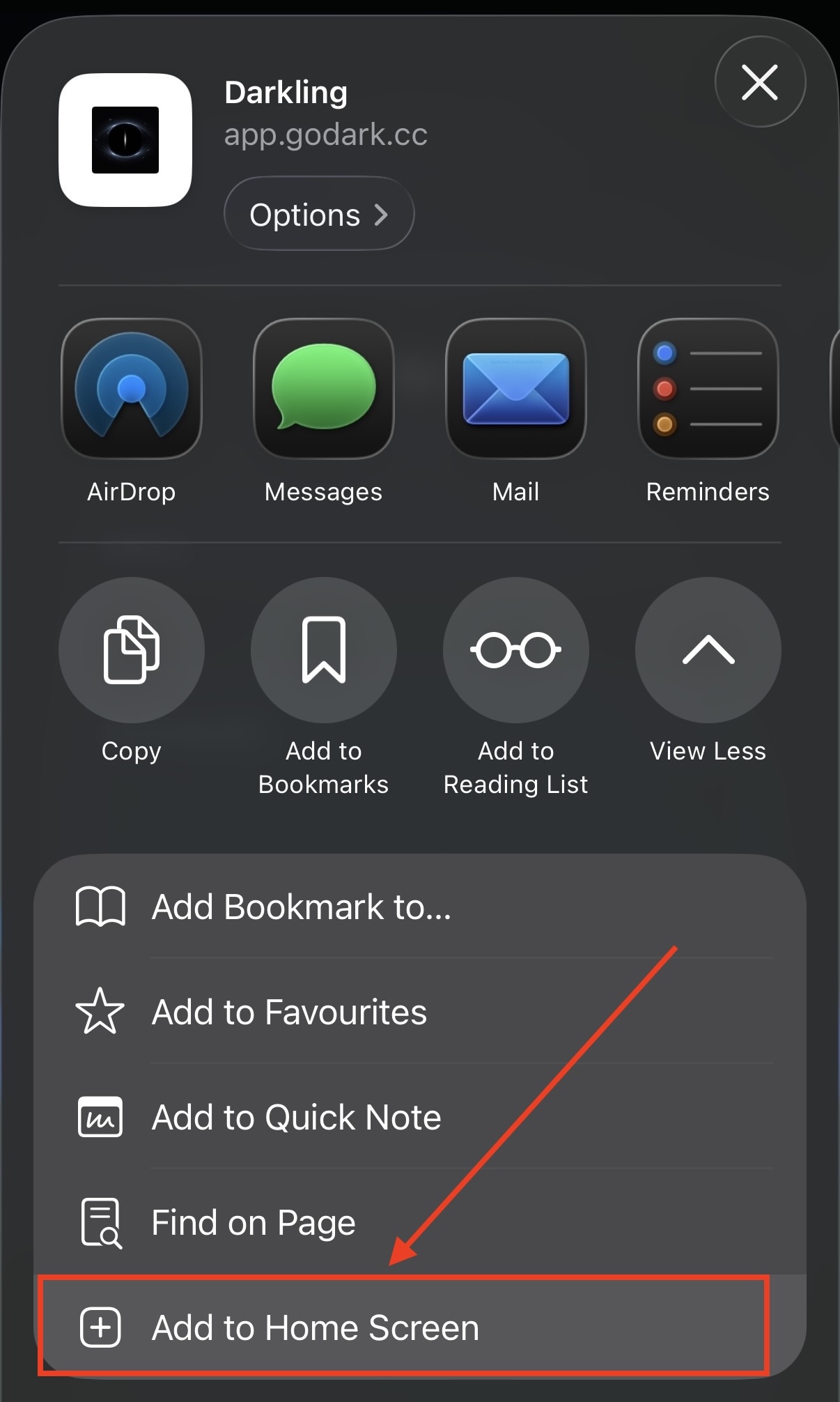
- Scroll down and select Add to Home Screen.
- Confirm with Add in the top-right corner.
- Launch Darkling from the new home-screen icon. The app opens in standalone mode without browser chrome.
Android · Chrome
- Open
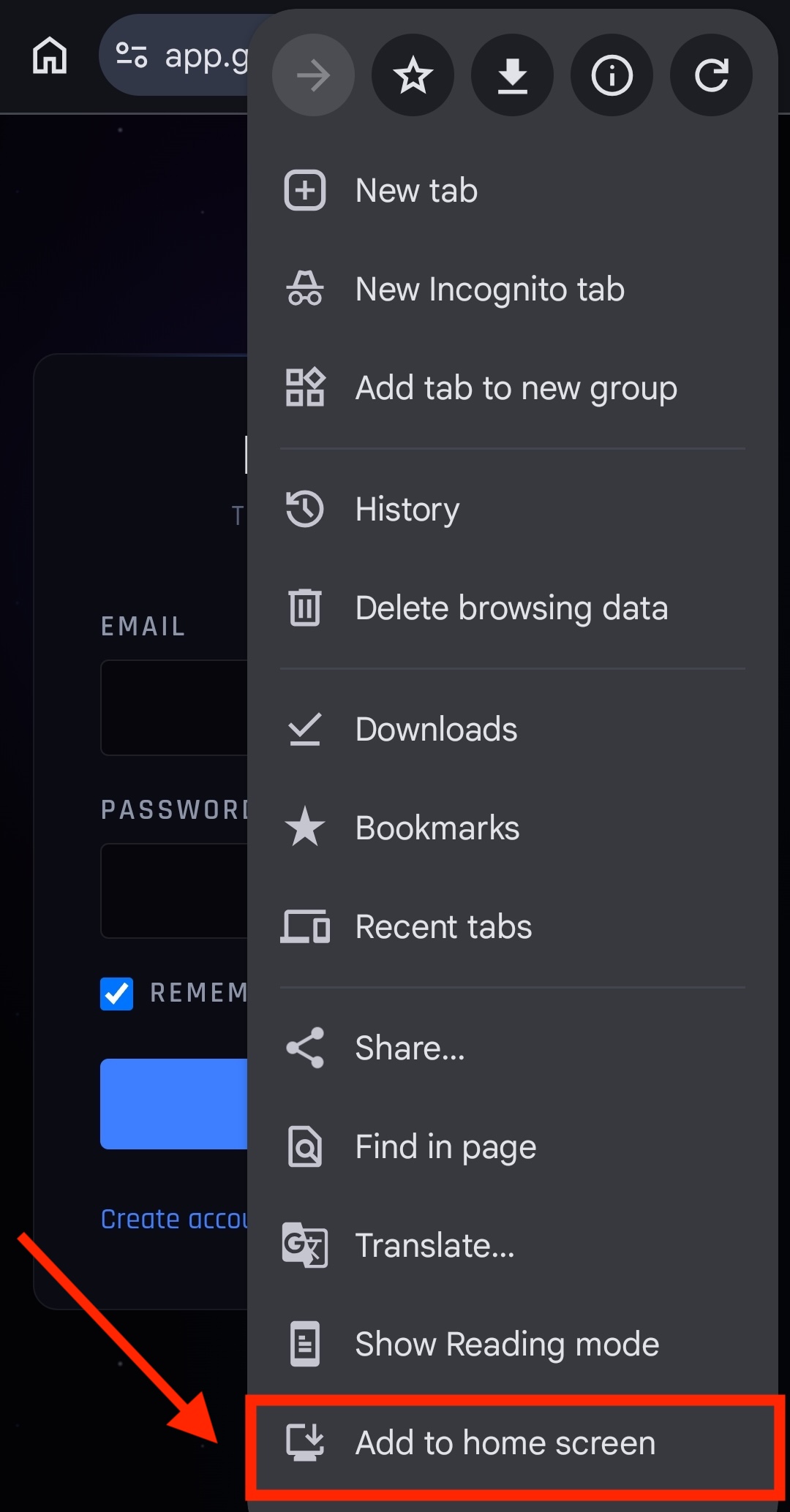
https://app.godark.ccin Chrome. - Tap the menu (⋮) in the top-right corner, then select Install app or Add to Home Screen. Chrome may also surface an "Install" prompt in the address bar.
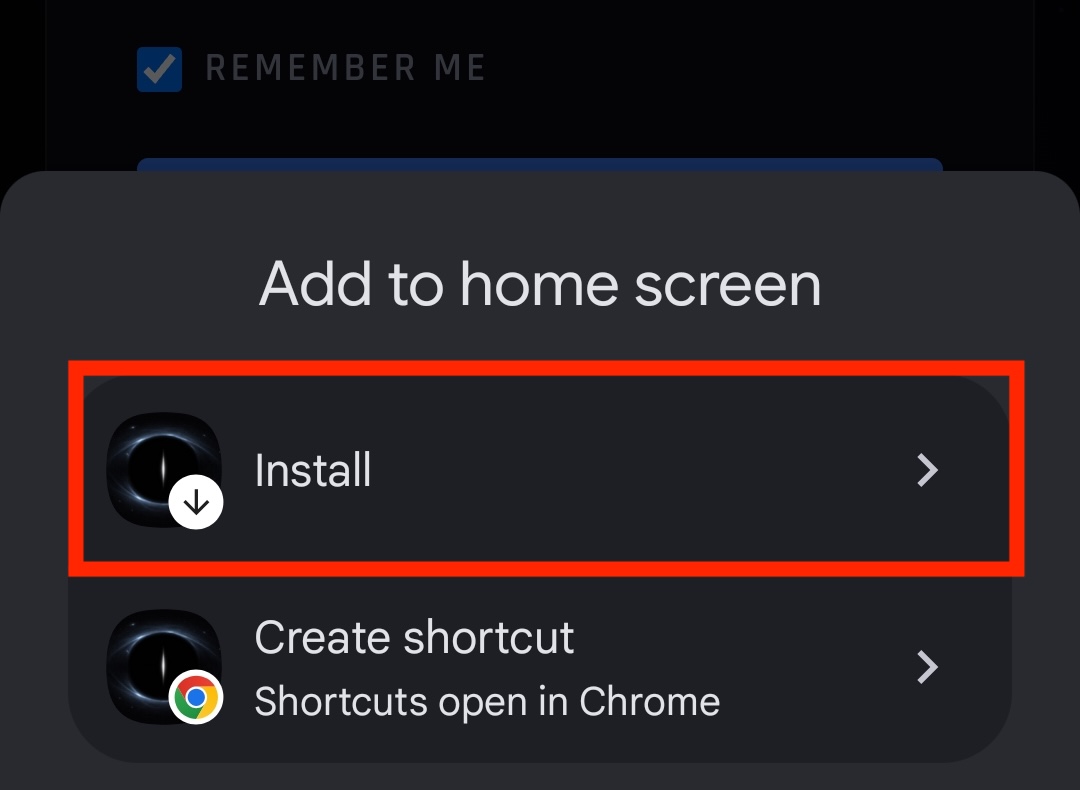
- Confirm the install in the dialog that appears.
- Launch Darkling from your app drawer or home screen. Push notifications work out of the box.
Desktop · Chrome & Edge
- Open
https://app.godark.ccin Chrome or Edge. - Look for the install icon on the right side of the address bar (a small monitor with a down-arrow) or at the Open in App text. Click it.

- Click Install in the dialog. Darkling opens in its own window and is added to your applications.
- Launch later from your dock, taskbar, or Start menu.
Desktop · Safari
Requires macOS 14 Sonoma or later. Safari does not show an install icon in the address bar — use the File menu instead.
- Open
https://app.godark.ccin Safari. - From the share menu, choose Add to Dock
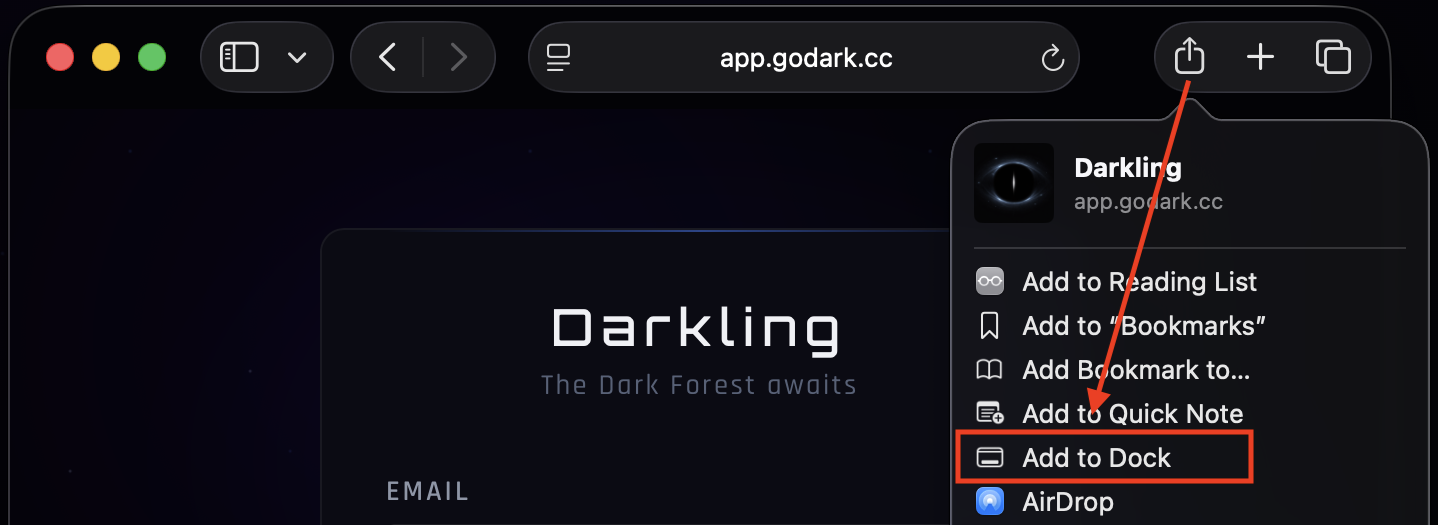
- Confirm the name and icon, then click Add.
- Launch from the Dock. The app opens in its own window without Safari chrome.
Firefox
Firefox on desktop does not support installing Progressive Web Apps. Use Chrome, Edge, or Safari on desktop, or visit the site in any browser to play in a regular window.
Firefox on Android does support install: open the menu in the URL bar and select Install. Service workers, offline support, and the update prompt also work in Firefox desktop — only the installable shell is missing.
Enable Notifications
After installation, push notifications need to be enabled once. They are off by default.
- Launch the installed app.
- Navigate to Settings → Notifications from the main menu.
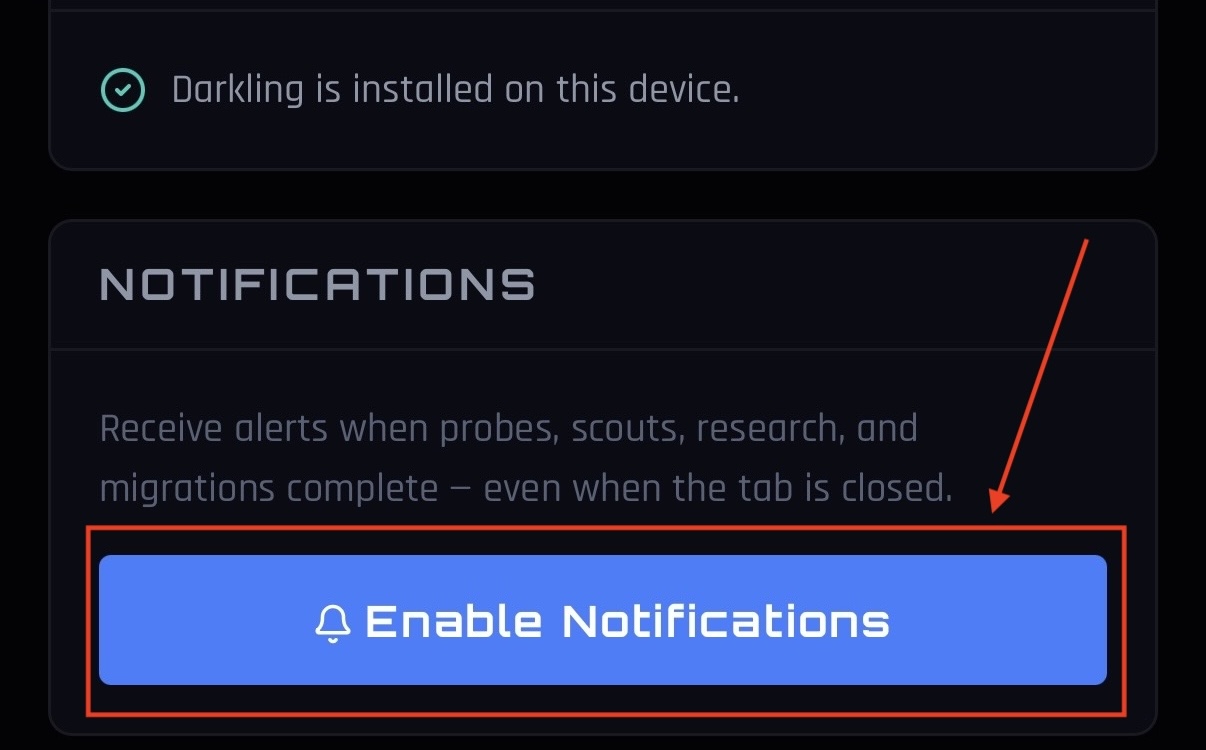
- Tap Enable Notifications and grant the permission when prompted.
You can disable notifications at any time from the same screen, or revoke permission entirely in your device's system settings.